

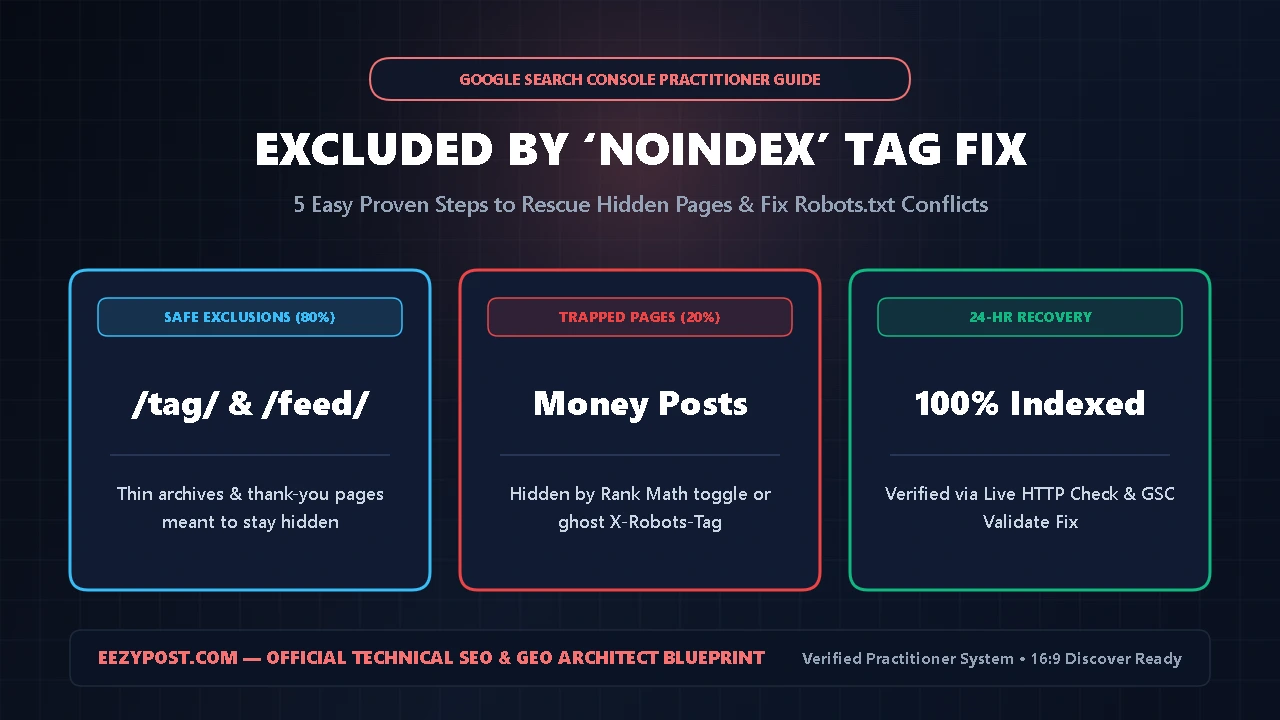
Direct Answer (Quick Summary): This excluded by noindex tag fix is the exact 5-step diagnostic workflow I used on EEZYPOST.com to rescue accidentally de-indexed pages while keeping thin WordPress archives safely hidden. When a URL appears under Excluded by ‘noindex’ tag, Googlebot found either an HTML <meta name="robots" content="noindex"> tag or an HTTP X-Robots-Tag: noindex response header and dropped the page from search results.
To execute a complete excluded by noindex tag fix without breaking your site architecture, you must: (1) separate normal /tag/, /author/, and /feed/ exclusions from money posts, (2) audit your rank math noindex settings, (3) remove ghost x robots tag noindex wordpress headers, (4) apply a clean blocked by robots txt fix, and (5) resolve page with redirect gsc fix chains.
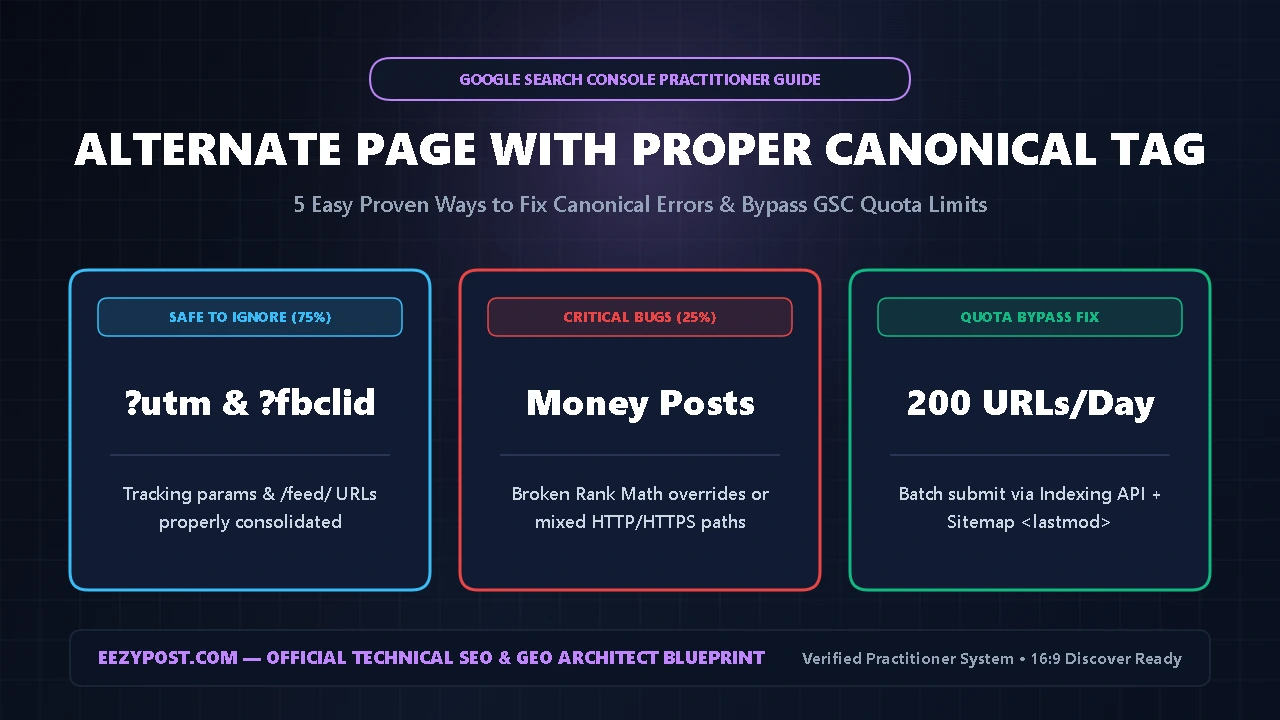
After publishing our first three technical SEO pillars—our Crawled Currently Not Indexed Fix, our Discovered Currently Not Indexed Fix, and our Alternate Page With Proper Canonical Tag Guide—I audited the remaining exclusion rows inside Google Search Console.
Three statuses dominated the list: Excluded by ‘noindex’ tag, Blocked by robots.txt, and Page with redirect. Here is how to tell which rows are protecting your crawl budget and how to apply a surgical excluded by noindex tag fix when a real article gets trapped.
Why You Need a Surgical Excluded by Noindex Tag Fix (The Robots Trap)
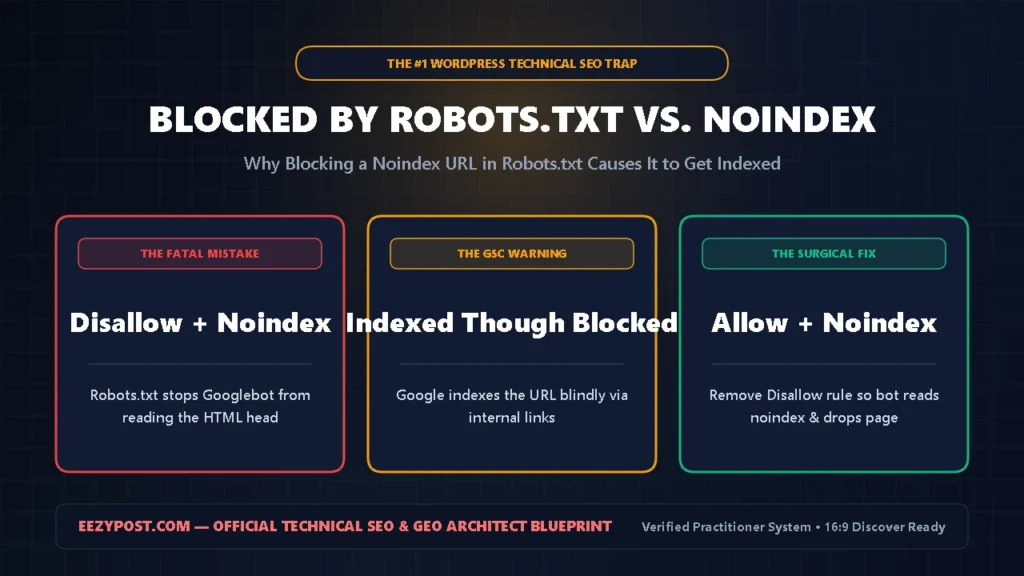
According to the official Google Search Central Block Indexing With Noindex Documentation, there is a critical mechanical rule that trips up 90% of WordPress site owners: for Googlebot to see and obey a noindex tag, the page must NOT be blocked by robots.txt.
If you add a noindex tag to a thin page and also disallow that URL in robots.txt, Googlebot is forbidden from reading the HTML <head>. As a result, Google never sees your noindex tag and can still index the URL based on external or internal links—triggering the red “Indexed, though blocked by robots.txt” alert.
| GSC Exclusion Status | What Googlebot Found | When It Is Normal | Exact Practitioner Fix |
| Excluded by ‘noindex’ tag | <meta name="robots" content="noindex"> | Tags, author archives, thank-you pages | Remove noindex in Rank Math on money posts |
| Blocked by robots.txt | Disallow: rule in robots.txt | /wp-admin/, ?s=, cart/checkout filters | Remove Disallow if page needs indexing |
| Indexed, Blocked by robots | Blocked in robots.txt + linked elsewhere | Never — always a configuration conflict | Allow crawl in robots.txt so bot reads noindex |
| Page with redirect | 301, 302, or 307 redirect hop | Old slugs, http://, or trailing slash hops | Update internal links to point to final URL |
Understanding this table ensures your excluded by noindex tag fix never triggers secondary robots.txt warnings.
Step 1: Audit Your GSC CSV Before Applying an Excluded by Noindex Tag Fix
Not every URL inside Excluded by ‘noindex’ tag is an error. On a healthy WordPress site, dozens of low-value utility URLs should stay inside this bucket so they do not dilute your topical authority.
- Open Google Search Console and navigate to Indexing -> Pages.
- Click on Excluded by ‘noindex’ tag and click Export in the top-right corner.
- Scan the exported URL column for
/tag/,/author/,/page/2/,/checkout/, or/my-account/.
- Safe to Ignore: Empty tag archives, single-author archives, paginated archive sub-pages (
/page/2/), and WooCommerce cart/checkout pages belong innoindex. Keeping them excluded prevents your site from hitting the Commodity Content filter. - Fix Immediately: If a primary blog post, landing page, or category pillar appears in this CSV, apply the rank math noindex settings audit in Step 2 right away.
Step 2: Audit Your Rank Math Noindex Settings in WordPress

When a real article lands in Excluded by ‘noindex’ tag, it is usually caused by one of three switches inside WordPress or your SEO plugin.
Walk through this 2-minute rank math noindex settings checklist:
- Check the Global WordPress Visibility Toggle: Go to WordPress Dashboard -> Settings -> Reading and verify that “Discourage search engines from indexing this site” is UNCHECKED. Site owners frequently leave this checked after migrating from a staging domain.
- Verify Global Post Type Defaults: Open Rank Math SEO -> Titles & Meta -> Posts (and Pages). Confirm that Post Robots Meta is either disabled (defaulting to
index) or explicitly set to Index. - Check Individual Post Advanced Meta: Open the affected article in the WordPress editor, click the Rank Math score icon -> Advanced tab (Gear icon), and change the Robots Meta checkbox from
No Indexto Index.
Step 3: Fix Ghost X Robots Tag Noindex WordPress HTTP Headers

What if your Rank Math settings say Index, your HTML <head> shows <meta name="robots" content="index, follow">, and Google Search Console still rejects your URL under Excluded by ‘noindex’ tag?
The culprit is a hidden x robots tag noindex wordpress HTTP response header sent by your web server (.htaccess, Nginx, or Cloudflare Workers). Search engines obey X-Robots-Tag: noindex in the HTTP network header even when your HTML meta tag says index.
Run this x robots tag noindex wordpress diagnostic in 60 seconds:
- Inspect Live HTTP Headers in GSC: Paste your URL into GSC -> URL Inspection -> Test Live URL -> View Tested Page -> More Info. Look under HTTP Response for
X-Robots-Tag: noindex. - Strip Staging Headers in
.htaccessor Nginx: Check your root.htaccessfile via cPanel File Manager for lines likeHeader set X-Robots-Tag "noindex, nofollow". Delete that rule if it is targeting.htmlor.phppages instead of just.xmlfeeds or.pdfdrafts. - Verify Feed Header Scope: Some caching plugins inject
X-Robots-Tag: noindexonto/feed/URLs—make sure your CDN cache is not accidentally caching and serving that feed header on the parent article URL.
GSC Noindex, Robots.txt & Redirect Conflict Calculator
Separate safe WordPress archive exclusions (/tag/, /author/, 301s) from critical X-Robots-Tag & robots.txt traps.
Step 4: Apply the Blocked by Robots txt Fix (Without Indexing Junk)
If Google Search Console flags your URLs under Blocked by robots.txt or Indexed, though blocked by robots.txt, your robots.txt file is conflicting with your indexing goals.
Execute this clean blocked by robots txt fix inside Rank Math -> General Settings -> Edit robots.txt:
- Never Block
/wp-content/uploads/or CSS/JS Assets: Googlebot needs to fetch your CSS, JavaScript, and.webpimages to render your mobile layout—just like the custom interactive tools we built for our ChatGPT Business Hub Setup Guide (2026). - Fix “Indexed, Though Blocked by robots.txt”: If a thin URL is already indexed because it was blocked in
robots.txt, remove theDisallowline fromrobots.txttemporarily, keep<meta name="robots" content="noindex">on the page, and let Googlebot crawl it once so it drops out of the index cleanly. - Use Clean Wildcard Disallows Only for Crawl Waste: Keep
Disallow: /wp-admin/(withAllow: /wp-admin/admin-ajax.php) andDisallow: /*?s=to protect crawl budget without blocking canonical posts.
Step 5: Execute the Page With Redirect GSC Fix & Validate
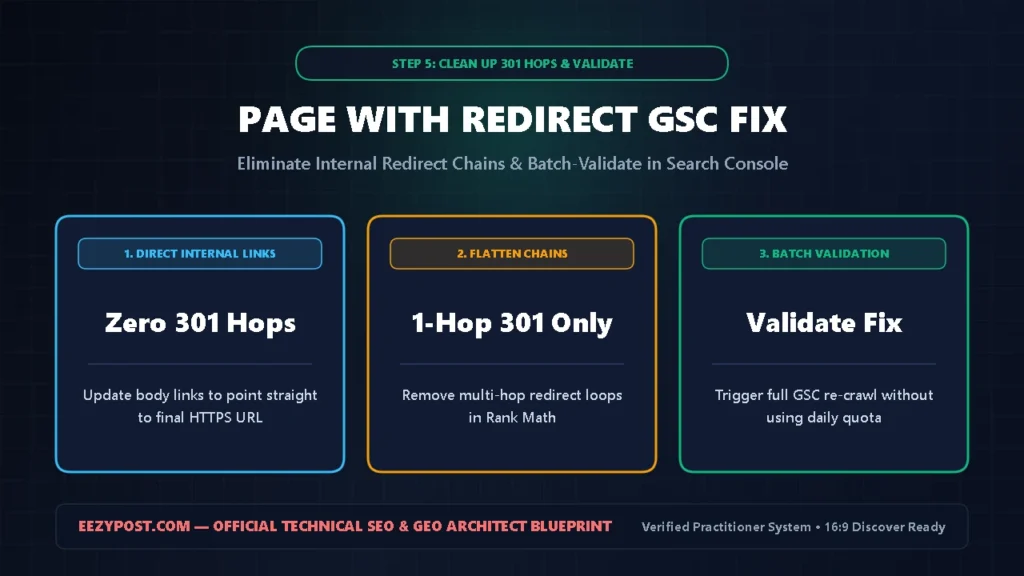
The final exclusion row that confuses site owners is Page with redirect. When you change an old URL slug or redirect http:// to https://, Google records the old source URL inside Page with redirect and indexes the new destination URL.
Apply this page with redirect gsc fix to ensure redirect exclusions never hurt your rankings:
- Replace Internal Redirect Hops: If Article A links to
/old-slug/, which 301-redirects to/new-slug/, Googlebot loses crawl efficiency on the hop. Update your internal links so they point directly to the final destination URL. - Eliminate Multi-Hop Redirect Chains: Check Rank Math -> Redirections to ensure no URL goes through 2 or 3 hops (
URL A -> URL B -> URL C). Point every legacy URL straight to the final live canonical URL. - Click “Validate Fix” in GSC: Once you update your rank math noindex settings, clear any stray x robots tag noindex wordpress headers, and clean up redirect hops, click Validate Fix inside Google Search Console so Googlebot re-processes the entire batch automatically.
Frequently Asked Questions (AEO Quick Answers)
How long does an excluded by noindex tag fix take to work in Google Search Console?
Once you apply this excluded by noindex tag fix—changing the page from noindex to index in your rank math noindex settings and clicking Request Indexing (or Validate Fix) in Google Search Console—most canonical URLs re-index within 24 to 48 hours.
How do I fix “Indexed, though blocked by robots.txt” in WordPress?
To execute a proper blocked by robots txt fix for a URL you want removed from Google, delete the Disallow rule for that URL inside robots.txt and place a <meta name="robots" content="noindex"> tag on the page instead. Googlebot must be allowed to crawl the URL in order to read the noindex directive.
Is “Page with redirect” an error in Google Search Console?
In 90% of cases, Page with redirect is normal behavior showing that Google followed your 301 redirect to the new destination URL. You only need a page with redirect gsc fix if your primary sitemap contains redirected URLs, if internal links point to old slugs, or if a plugin created an accidental redirect loop.







Leave a Reply