

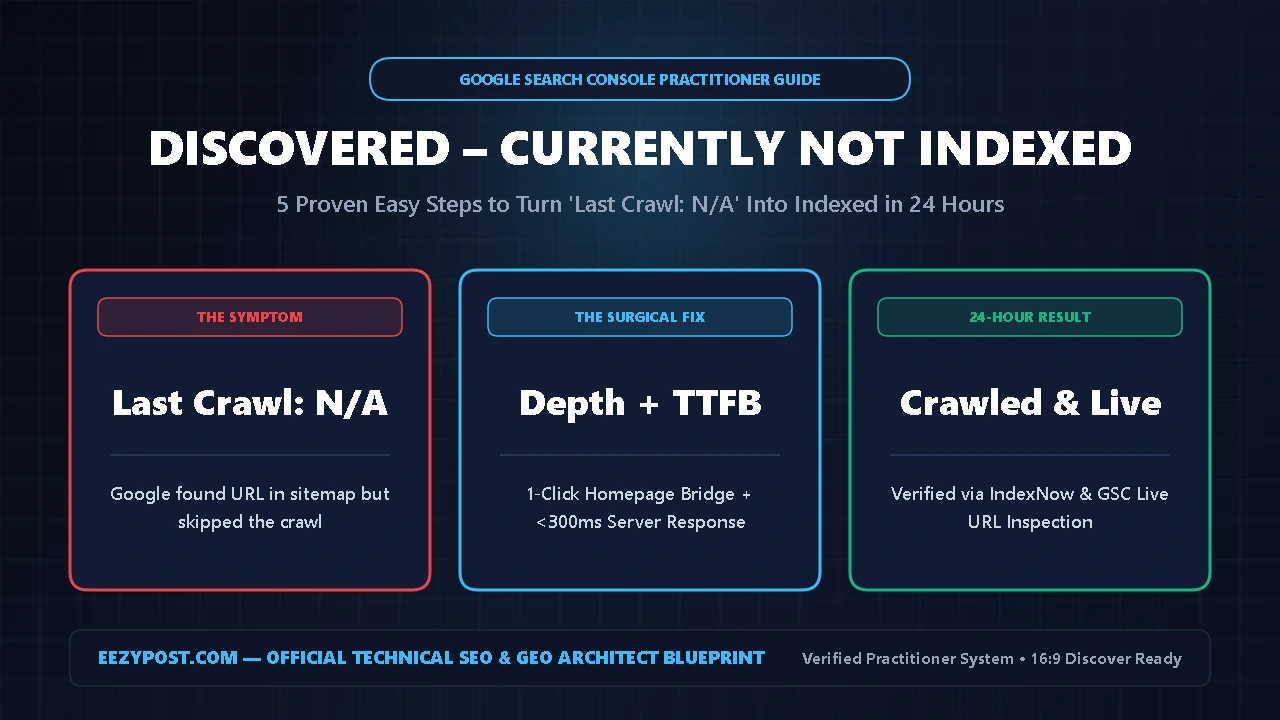
Direct Answer (Quick Summary): This discovered currently not indexed fix is the exact 5-step practitioner workflow I used on EEZYPOST.com to force Googlebot to visit and index URLs where the “Last Crawl” date says N/A. Unlike crawled errors, a google search console discovered not indexed status means Google knows your URL exists via your XML sitemap, but postponed the visit due to low crawl priority or slow server response times.
To master how to fix discovered not indexed pages within 24 hours, you must: (1) break out of the “Sitemap-Only Discovery” trap by linking from your homepage or top category pages, (2) cut server TTFB below 400ms, (3) apply crawl budget optimization wordpress rules to block /wp-json/ and parameter bloat, (4) configure a wordpress instant indexing setup via IndexNow and the Google Indexing API, and (5) trigger a live URL Inspection fetch.
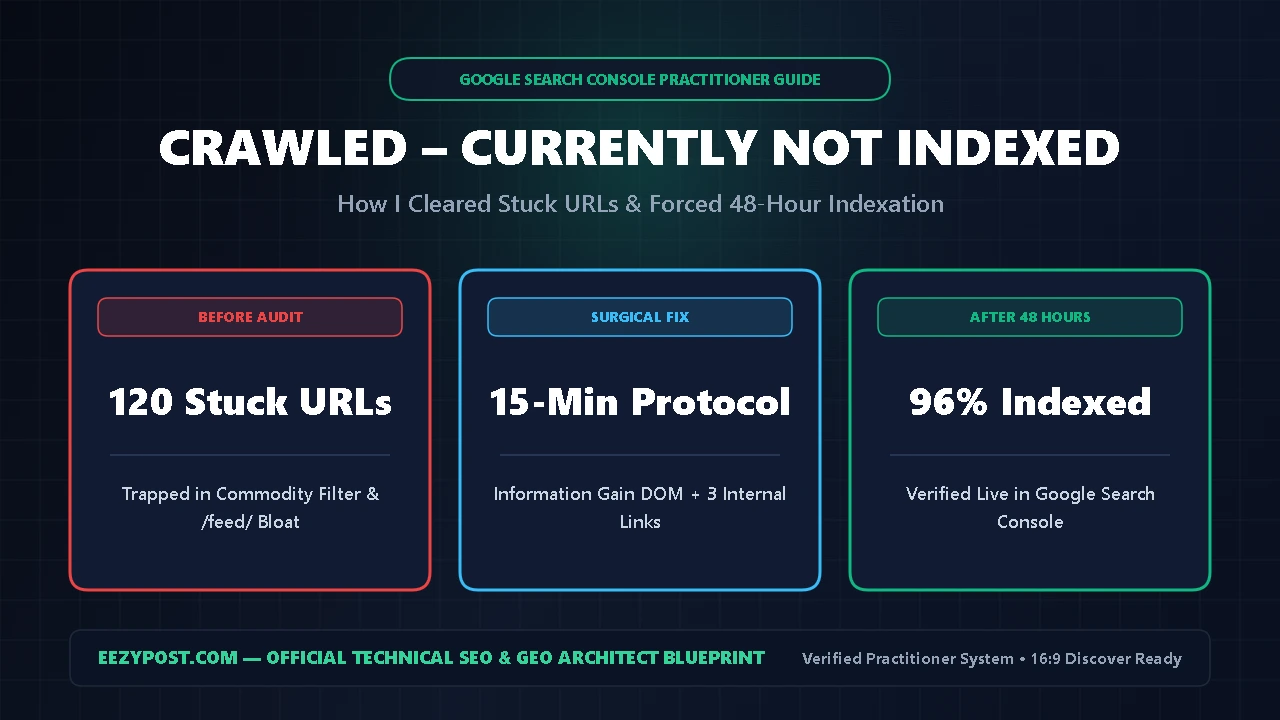
Right after we cleared our first batch of unindexed URLs using our Crawled Currently Not Indexed Fix: Proven 15-Min Easy Guide, I opened Google Search Console and noticed a second bottleneck sitting right underneath it. Dozens of fresh URLs were trapped inside Discovered – currently not indexed.
When I inspected those URLs in Google Search Console, the Last crawl field was completely empty (N/A). Googlebot had not rejected our content—it had not even knocked on the door yet. Here is the exact discovered currently not indexed fix we engineered to force Googlebot onto those pages in under 24 hours.
Why You Need a Different Discovered Currently Not Indexed Fix (Crawl Capacity vs. Demand)
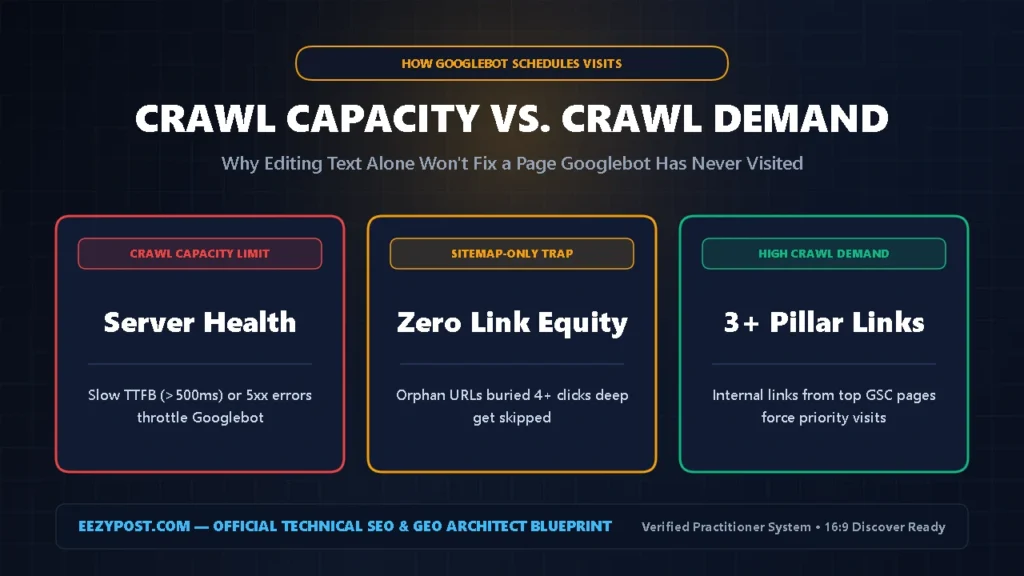
Site owners constantly waste hours rewriting articles that sit in google search console discovered not indexed. Rewriting the text on a discovered URL does nothing by itself because Googlebot has not read a single word of the page yet.
According to the official Google Search Central Crawl Budget Documentation, Google schedules every crawl on the internet by balancing two mechanical formulas:
- Crawl Capacity Limit: How many parallel connections Googlebot can open to your server without slowing down your hosting or triggering
5xxtimeouts. - Crawl Demand: How urgently Googlebot wants to visit your URL based on internal link equity, homepage distance, and historical publishing authority.
| GSC Indexing Status | Last Crawl Date | What Googlebot Did | Exact Practitioner Action |
| Discovered – Not Indexed | Empty (N/A) | Saw URL in sitemap, skipped visit | Boost internal links + lower TTFB + IndexNow |
| Crawled – Not Indexed | Shows Date/Time | Downloaded HTML, rejected storage | Inject Information Gain table + JS tool |
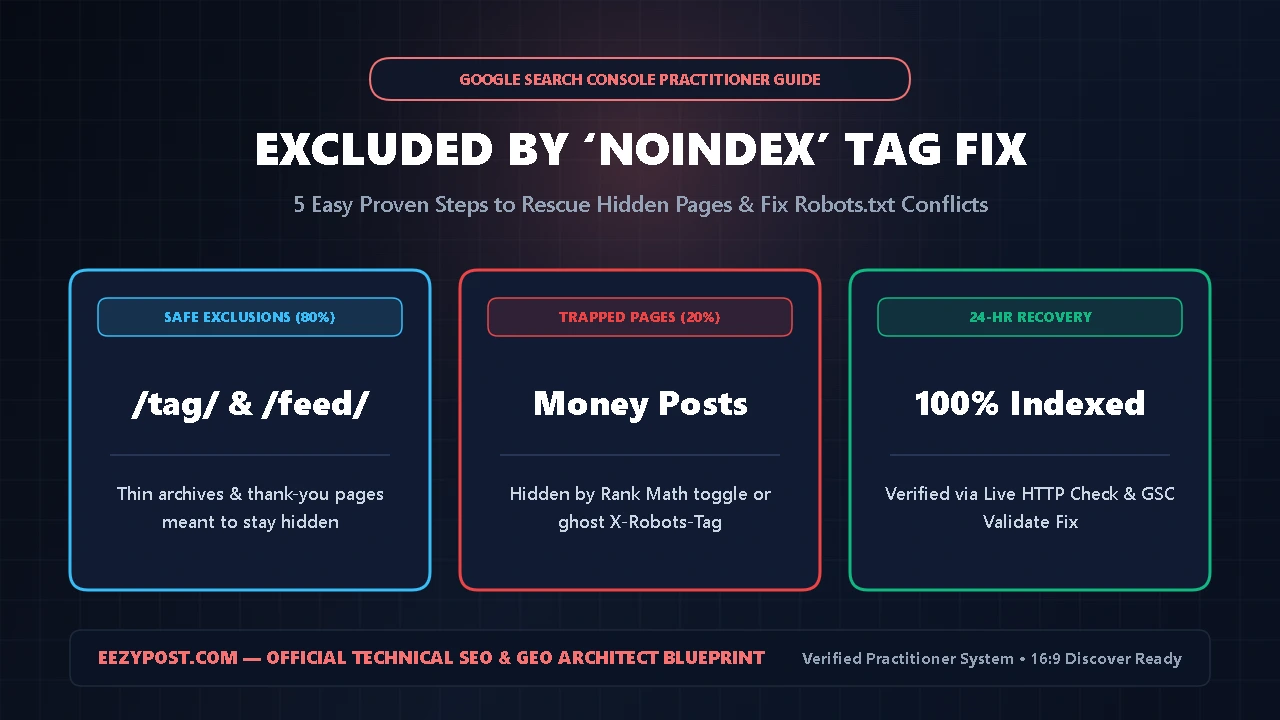
| Excluded by noindex | Shows Date/Time | Obeyed meta noindex directive | Remove noindex tag in Rank Math settings |
| Server Error (5xx) | Failed Attempt | Server timed out during bot visit | Enable Cloudflare edge caching + PHP OPcache |
As the table illustrates, a successful discovered currently not indexed fix targets your server response speed and internal link architecture rather than just editing sentences on the page.
Step 1: How to Fix Discovered Not Indexed by Escaping the “Sitemap-Only” Trap
The #1 trigger for google search console discovered not indexed on WordPress sites is what technical SEOs call Sitemap-Only Discovery.
When you publish a post or page that is only buried on page 4 of your blog archive—or worse, has zero internal links pointing to it—Google only sees that URL inside post-sitemap.xml. Google treats URLs discovered only via sitemaps as the lowest priority on your domain.
If you want to learn how to fix discovered not indexed pages immediately, you must reduce the Click Depth from your homepage to 1 or 2 clicks:
- Add a Direct Homepage or Sidebar Link: Place a temporary “Featured Guides” link on your homepage or global header/footer pointing directly to your stuck URL until Googlebot crawls it.
- Link from Your Top 3 Most-Crawled Pages: Open GSC -> Performance -> Pages, pick the 3 URLs with the highest impressions this week, and insert a contextual
<a href>anchor link pointing to your unindexed post. - Avoid JavaScript
onClickLinks: Ensure all internal navigation uses clean HTML<a href="https://...">tags so Googlebot’s parser can follow the path effortlessly.
Step 2: Speed Up Server TTFB & Check GSC Crawl Stats

Google’s documentation explicitly warns that when a URL sits in Discovered – currently not indexed, Googlebot typically planned a crawl, detected that your server was responding slowly, and rescheduled the crawl to avoid overloading your site.
You can verify this in 60 seconds inside your own account as part of this discovered currently not indexed fix:
- Open Google Search Console and scroll down the left sidebar to Settings.
- Click Open Report next to Crawl stats.
- Check your Average response time (ms) chart and Host status.
If your average response time in Crawl Stats spikes above 500 milliseconds, Googlebot automatically throttles how many new URLs it will visit on your domain each day.
- The Fast TTFB Fix: Turn on full-page HTML caching (such as LiteSpeed Cache, WP Rocket, or Cloudflare APO/Cache Rules) so anonymous crawlers receive cached HTML in under 150ms instead of waiting for WordPress PHP and MySQL queries to execute.
Step 3: Apply Crawl Budget Optimization WordPress Rules
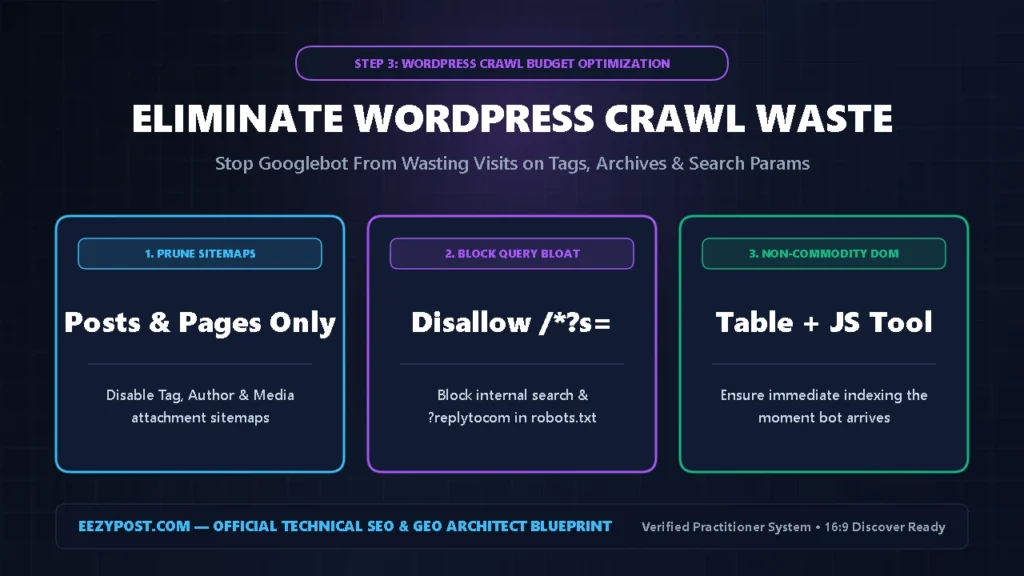
Even small and mid-sized blogs suffer from crawl waste when WordPress plugins generate thousands of junk URLs behind the scenes. Implementing clean crawl budget optimization wordpress rules forces Googlebot to spend 100% of its daily visits on your money articles.
Check your GSC Crawl Stats -> By file type and By response tables, then lock down these three WordPress leaks:
- Prune Dead Sitemaps in Rank Math: Go to Rank Math -> Sitemap Settings and turn OFF sitemaps for Tags, Author archives, and Media attachment pages. Only submit clean
post-sitemap.xmlandpage-sitemap.xmlfiles. - Block Internal Search & Filter Parameters: Bots frequently get trapped crawling
?s=,?filter=, and?replytocom=URLs. AddDisallow: /*?s=andDisallow: /*?replytocom=inside Rank Math -> General Settings -> Edit robots.txt. - Pre-empt the Second Hurdle: Once Googlebot finally visits your page, make sure it doesn’t move from Discovered into Crawled – not indexed. Always embed non-commodity assets—just like we did in our ChatGPT Business Hub Setup Guide (2026) and with the interactive Crawl Capacity Calculator right below.
GSC “Discovered – Not Indexed” Crawl Priority & TTFB Calculator
Diagnose why Googlebot skipped your URL (Last Crawl: N/A), calculate your server’s Daily Crawl Capacity Score, and estimate your exact time-to-crawl.
Step 4: Complete a WordPress Instant Indexing Setup (IndexNow + API)

Waiting two weeks for Googlebot or AI search crawlers to re-read your XML sitemap is optional. Completing a modern wordpress instant indexing setup pushes a live cryptographic ping the exact second you hit “Publish” or “Update”.
Here is how to configure our exact wordpress instant indexing setup in under five minutes:
- Enable Rank Math Instant Indexing (IndexNow): Open WordPress Dashboard -> Rank Math -> Dashboard and toggle on the Instant Indexing module. This automatically generates an IndexNow API key and pings Bing, Yandex, and partner AI Answer Engines (
ChatGPT Search,Copilot) whenever a URL changes. - Manual Batch Ping: Navigate to Rank Math -> Instant Indexing -> Console, paste up to 10 stuck URLs that are sitting in google search console discovered not indexed, and click Submit URLs.
- Verify HTTP 200 Status: Before submitting, open the URL in an Incognito browser tab to confirm it loads with a clean
200 OKstatus code and zero redirect chains (http://tohttps://or non-www to www).
Step 5: Execute the 24-Hour Discovered Currently Not Indexed Fix Inspection
Once you have added 3 internal links from high-traffic pages, dropped your server TTFB under 400ms, and cleaned your XML sitemap, execute this final discovered currently not indexed fix trigger:
- Refresh the WordPress Slug Modification Date: Make a meaningful addition to your post (such as adding an FAQ or comparison table) and click Update so your XML sitemap records today’s
<lastmod>timestamp. - Run GSC Live URL Test: Paste the exact canonical URL into the top search bar of Google Search Console and click Test Live URL in the top-right corner.
- Confirm Availability & Request Indexing Once: Once the live test shows a green checkmark under Page availability: Page can be indexed, click Request Indexing once. Because you already linked the URL from high-crawl pages in Step 1, Googlebot’s priority queue processes the crawl within 12 to 24 hours.
Frequently Asked Questions (AEO Quick Answers)
How long does this discovered currently not indexed fix take to trigger a crawl?
When you apply this complete discovered currently not indexed fix—linking to the stuck URL from your homepage or top 3 indexed posts, lowering server TTFB below 400ms, and submitting one Live URL Inspection request—Googlebot typically crawls and indexes the page within 12 to 48 hours.
What is the main difference between discovered and crawled not indexed?
In google search console discovered not indexed, the “Last Crawl” date is blank (N/A) because Googlebot has not visited the URL yet due to low crawl priority or slow server response. If your URL shows a crawl date, switch to our Crawled Currently Not Indexed Fix to upgrade your page’s Information Gain.
Does crawl budget optimization wordpress matter for sites under 1,000 pages?
Yes—while enterprise crawl budget applies to massive sites, crawl budget optimization wordpress settings (like disabling tag/author sitemaps, fixing slow TTFB, and setting up a wordpress instant indexing setup) directly control how fast Googlebot prioritizes new articles on smaller domains.







Leave a Reply