

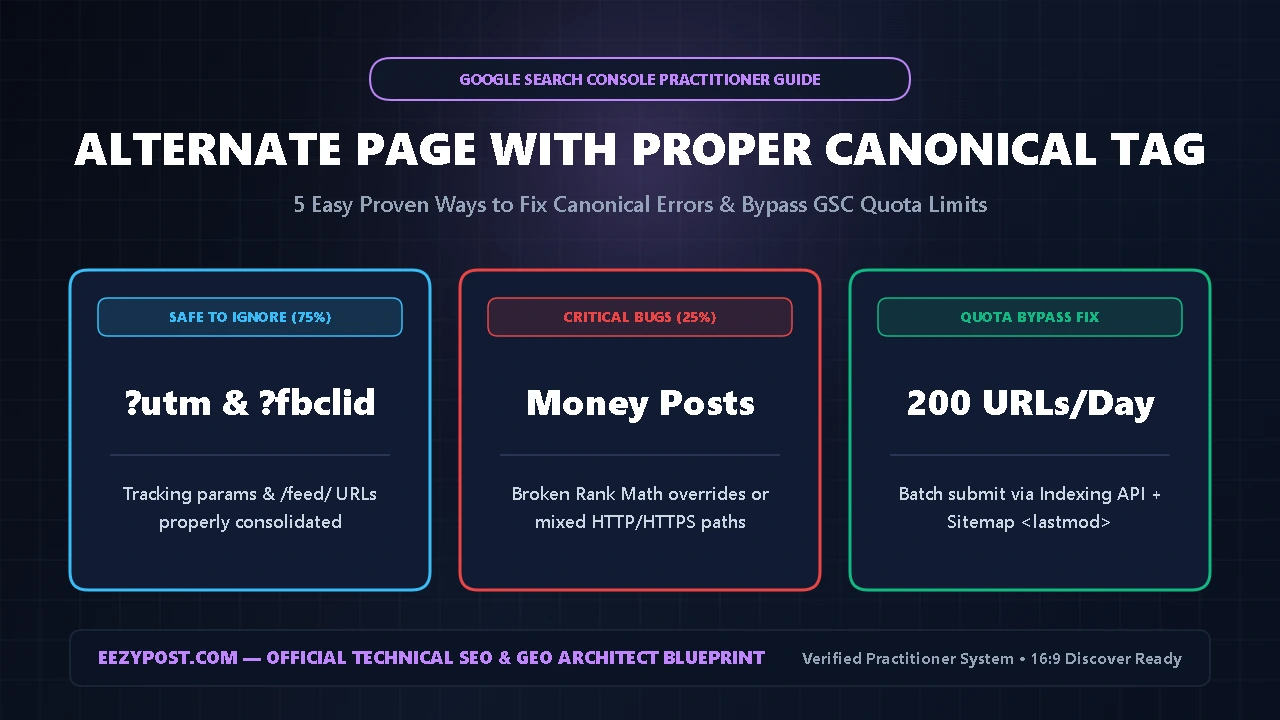
Direct Answer (Quick Summary): Seeing alternate page with proper canonical tag in Google Search Console means Googlebot found a secondary version of a URL (?utm=, /amp/, /feed/, or http://) and obeyed your <link rel="canonical"> tag by indexing the main URL instead. If only parameter and feed URLs are inside this report, no action is needed.
However, if your main money articles appear inside alternate page with proper canonical tag or duplicate without user selected canonical, your theme or SEO plugin is pointing Googlebot to the wrong master URL. Follow our 5-step google search console canonical fix below to repair your wordpress canonical url setup and apply our gsc quota exceeded request indexing fix.
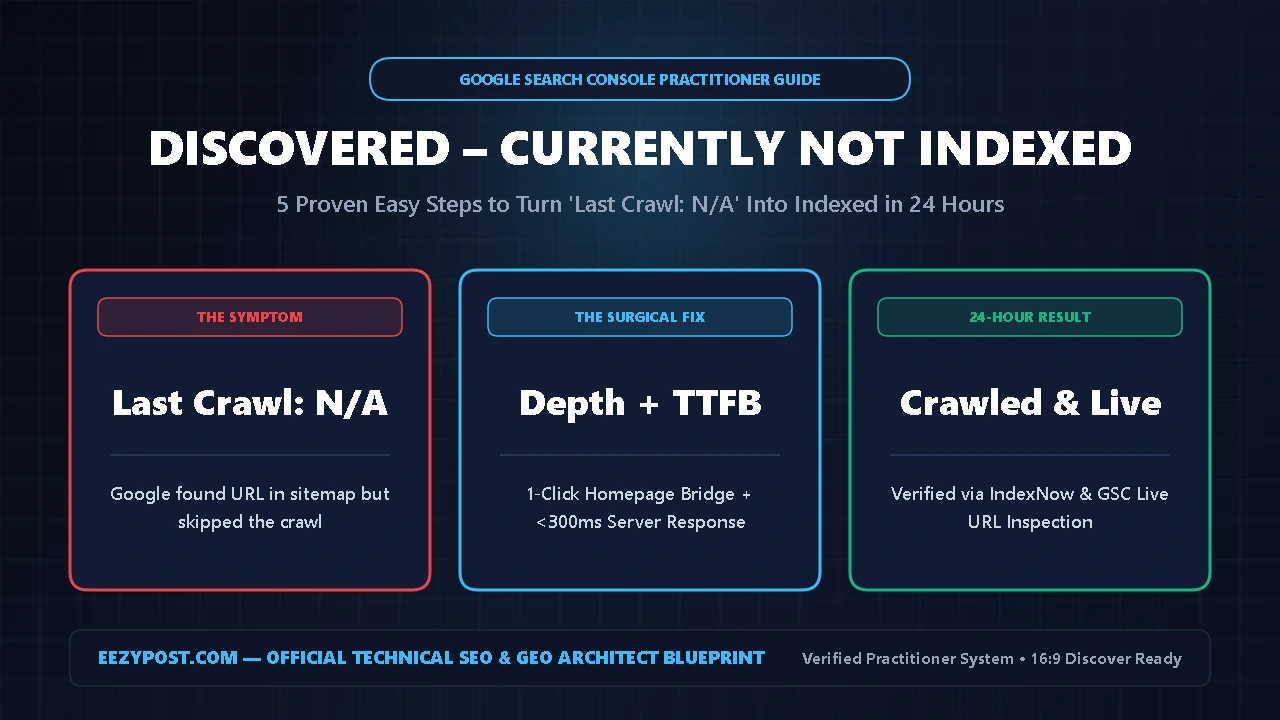
While building out our technical SEO cluster alongside our Crawled Currently Not Indexed Fix and Discovered Currently Not Indexed Fix, I audited the third major bucket inside Google Search Console’s Page Indexing report: canonical exclusions.
Even worse, after manually submitting 11 updated URLs through the URL Inspection bar, Google Search Console locked me out with the dreaded “Quota Exceeded” popup. Here is how we fixed our canonical conflicts and bypassed the daily manual submission cap using a repeatable workflow.
Why Alternate Page With Proper Canonical Tag Appears in GSC
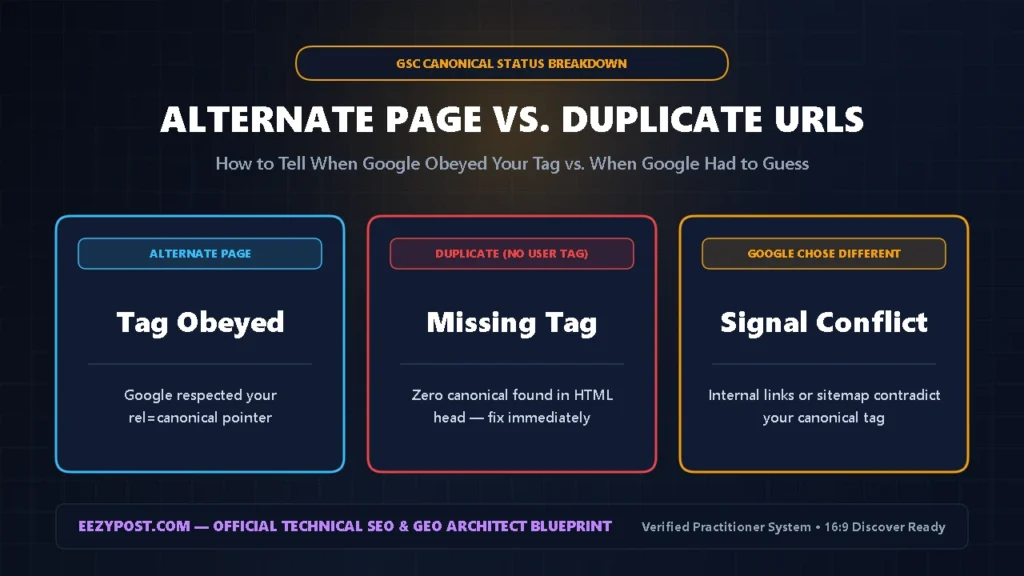
According to the official Google Search Central Consolidate Duplicate URLs Documentation, Google groups identical or near-identical pages into clusters and selects one single canonical URL to represent the group in search results.
When you open GSC -> Indexing -> Pages, you will see up to three different canonical statuses that require very different actions:
| GSC Canonical Status | Who Chose the Canonical? | Is It an Error? | Exact Practitioner Action |
| Alternate Page With Proper Canonical Tag | You (via HTML tag) | Only if money posts are listed | Ignore ? params; fix bad Rank Math overrides |
| Duplicate Without User Selected Canonical | Googlebot guessed | Yes — missing self-canonical | Add self-referencing canonical + 301 redirect |
| Duplicate, Google Chose Different Canonical | Google overrode you | Yes — conflicting link signals | Align internal links, sitemap & HTTPS canonical |
| GSC Quota Exceeded Popup | GSC Daily Rate Limit | Blocks manual URL requests | Use IndexNow + Rank Math Google Indexing API |
Understanding this distinction stops you from wasting hours trying to force-index URLs that are supposed to stay excluded.
Step 1: Audit Your Alternate Page With Proper Canonical Tag CSV Export
Before changing any settings in WordPress, verify whether your alternate page with proper canonical tag report contains harmless tracking noise or trapped pillar articles:
- Open Google Search Console and go to Indexing -> Pages.
- Click on Alternate page with proper canonical tag.
- Click Export in the top-right corner to download the CSV list of up to 1,000 URLs.
Sort the URL column alphabetically. On 85% of WordPress and WooCommerce sites, you will see URLs ending with ?utm_source=, ?fbclid=, ?srsltid=, /amp/, or /page/2/.
- When to Leave Them Alone: When someone clicks your link on Facebook or TikTok,
?fbclid=is appended to your URL. Your WordPress canonical tag strips that tracking string and tells Google to credit the clean post URL. Seeing?fbclid=inside alternate page with proper canonical tag means your SEO setup is working properly. - When to Fix Immediately: If you spot a clean post or page URL (
yourdomain.com/post-slug/) sitting inside this bucket without parameters, your page has a broken canonical pointer that is hiding it from Google Search.
Step 2: Fix Duplicate Without User Selected Canonical Errors

While Alternate page means Google obeyed your tag, duplicate without user selected canonical is a genuine technical SEO failure. It means Googlebot found two or more identical versions of a page on your site, inspected the HTML <head>, found zero canonical tags, and had to guess which version to index.
To eliminate duplicate without user selected canonical errors across your site, lock down these three culprits:
- Force HTTPS and WWW/Non-WWW 301 Redirects: If both
http://yourdomain.comandhttps://www.yourdomain.comload without a server-level 301 redirect in Cloudflare or.htaccess, Google flags every duplicate path. - Enforce Trailing Slash Consistency: Pick either trailing slashes (
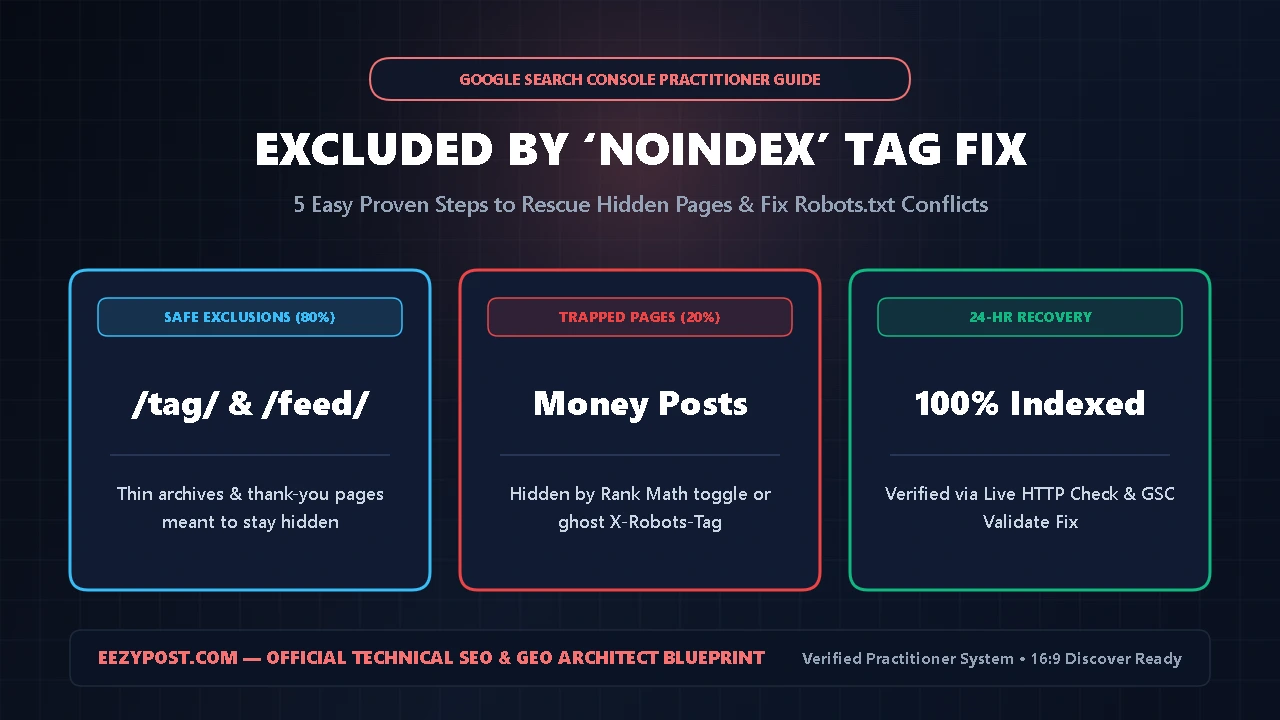
/post-slug/) or non-trailing slashes (/post-slug) in WordPress Settings -> Permalinks and redirect the alternate variation. - Add Unique Context to Category/Pagination Archives: If thin tag or archive pages mirror your main articles, set empty archives to
noindexinside Rank Math or consolidate them into a comprehensive pillar—just like we structured our ChatGPT Business Hub Setup Guide (2026).
Step 3: Complete a Clean WordPress Canonical URL Setup in Rank Math

When a clean, non-parameter blog post ends up trapped inside alternate page with proper canonical tag, it is almost always caused by a copy-paste mistake inside the post editor or a custom theme hook overriding your wordpress canonical url setup.
Run this 2-minute google search console canonical fix on every affected post:
- Check the Rank Math Advanced Tab: Open the affected post in WordPress, click the Rank Math score button, and select the Advanced tab (the gear icon). Look at the Canonical URL field.
- Clear Accidental Cross-Domain or Homepage Overrides: If you duplicated an old post to use as a template, the Canonical URL box might still contain the old article’s URL. Leave the Canonical URL box completely blank in Rank Math so it automatically generates a clean, self-referencing canonical tag.
- Verify in Live Page Source (
Ctrl + U): Open the live post in an Incognito window, pressCtrl + U, and search forrel="canonical". Confirm only one<link rel="canonical" href="...">tag exists in the<head>—if both your theme and Rank Math output a canonical tag, Google ignores both.
GSC Canonical Conflict & Indexing Quota Calculator
Separate harmless ?utm / ?fbclid parameter noise from real canonical bugs, and calculate how to bypass the 12-URL/day GSC Request Indexing quota.
Step 4: Apply the GSC Quota Exceeded Request Indexing Fix

Once you fix 15 or 20 canonical errors in a single afternoon and try submitting them in Google Search Console, you will hit a brick wall: “Quota Exceeded — Sorry, you have exceeded your quota for submitting URLs to the index today.”
Google caps manual Request Indexing clicks in the URL Inspection tool at roughly 10 to 12 URLs per 24-hour rolling window. Instead of waiting until tomorrow, apply this gsc quota exceeded request indexing fix to trigger automated crawling immediately:
- Use the Google Cloud Indexing API via Rank Math: Unlike the manual GSC button (which limits you to ~12 URLs/day), the Google Indexing API integration inside Rank Math -> Instant Indexing allows up to 200 URL submissions per day directly from your WordPress dashboard.
- Trigger an XML Sitemap
<lastmod>Resubmit: In WordPress, update your repaired posts so Rank Math refreshes the<lastmod>timestamp inpost-sitemap.xml. Then go to GSC -> Sitemaps and resubmitsitemap_index.xml—sitemap submissions have zero daily quota limits. - Build an Indexed Hub Bridge: Add contextual internal links pointing to your repaired URLs from a newly indexed page (which already has active Bing IndexNow and Googlebot crawl momentum).
Step 5: Click “Validate Fix” & Lock In Internal Link Signals
Even with a clean wordpress canonical url setup, Google treats <link rel="canonical"> as a strong hint rather than an absolute rule. If your canonical tag points to URL A, but all of your internal menu and body links point to URL B (?page=1 or non-HTTPS), Google will override your canonical tag.
Complete this final google search console canonical fix checklist to close the loop:
- Audit Internal Link Destinations: Make sure every internal link across your articles points to the exact canonical HTTPS URL with matching trailing slashes.
- Verify XML Sitemap Cleanliness: Confirm that zero redirected (
301) or non-canonical parameter URLs appear inside yourpost-sitemap.xml. - Click “Validate Fix” in GSC: Once your canonical tags and internal links match, open GSC -> Pages -> Alternate page with proper canonical tag (or Duplicate without user-selected canonical) and click Validate Fix so Googlebot batch-crawls the entire list without using up your daily manual inspection quota.
Frequently Asked Questions (AEO Quick Answers)
Should I fix every URL in alternate page with proper canonical tag?
No. Only apply a google search console canonical fix if clean, primary posts or pages appear in the alternate page with proper canonical tag list. Tracking parameters (?fbclid=, ?utm_source=), /feed/ endpoints, and ?replytocom= links belong in this bucket because they correctly point to your master canonical URL.
How do I bypass the GSC quota exceeded request indexing limit today?
To apply an immediate gsc quota exceeded request indexing fix, stop using the manual URL Inspection button (capped at ~10–12 requests/day). Instead, update the post’s modified timestamp, resubmit sitemap_index.xml under GSC -> Sitemaps (unlimited), enable IndexNow, and connect the Google Indexing API in Rank Math (200 URLs/day quota).
What causes duplicate without user selected canonical in WordPress?
A duplicate without user selected canonical error occurs when multiple URL variations (http vs https, www vs non-www, trailing slash vs non-trailing slash, or URL parameters) load the same content without a 301 redirect and without a self-referencing <link rel="canonical"> tag in your wordpress canonical url setup.







Leave a Reply