

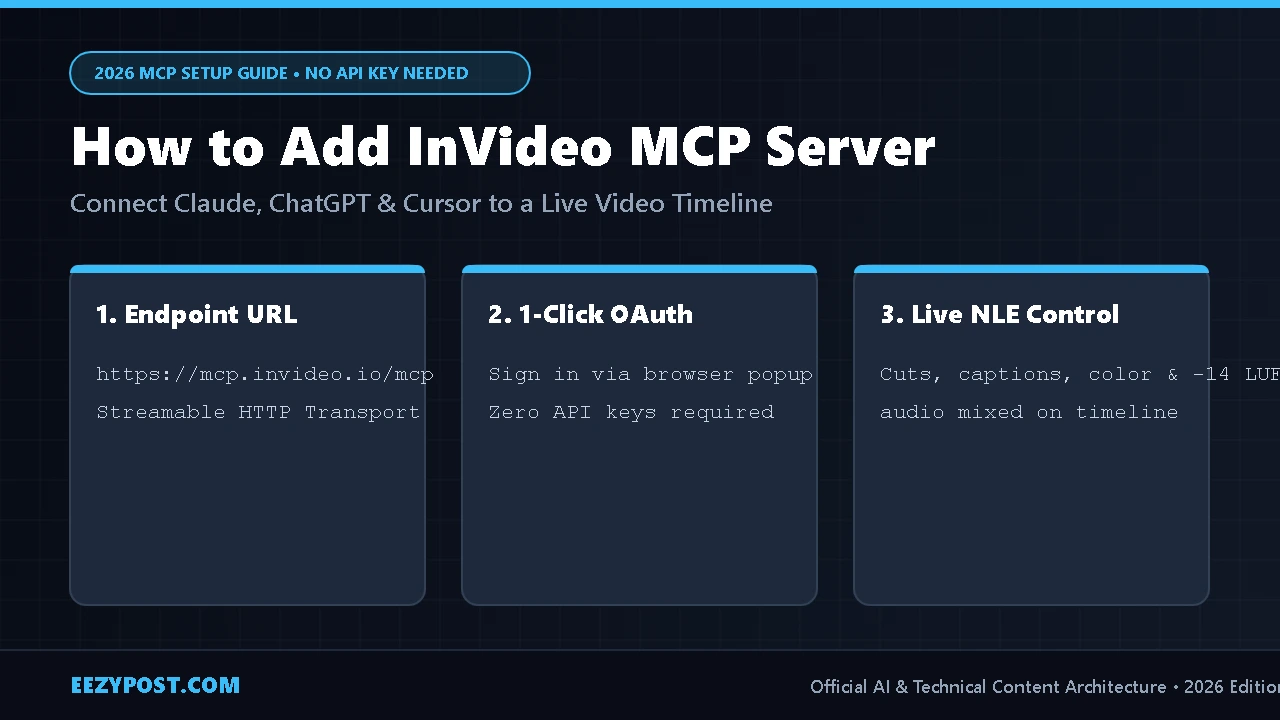
To add the InVideo MCP server to your AI client, connect the remote Streamable HTTP endpoint https://mcp.invideo.io/mcp inside your client’s MCP or Custom Connector settings and complete the browser OAuth sign-in. You do not need an API key—once authenticated, agents like Claude, ChatGPT, and Cursor can generate, cut, color-grade, and mix audio on a live InVideo multitrack timeline in real time.
If you produce short-form ads or client commercials every week, you already know the biggest bottleneck in AI video isn’t generating clips anymore—it’s the painful back-and-forth between your script, your video generator, and your timeline editor.
When I first tested the new InVideo MCP server (mcp.invideo.io/mcp) for our production pipeline, I hit the exact same wall most creators are running into right now: trying to paste the server into standard web chats that don’t support remote Model Context Protocol (MCP) endpoints, or getting stuck on OAuth redirect loops inside desktop editors.
In this hands-on practitioner guide, I will walk you through the exact 2-minute setup to connect InVideo MCP across Claude, ChatGPT, Cursor, and VS Code, how to fix the “connector missing” issue, and how to use our interactive config generator below to spin up your first agentic timeline edit today.
What Is the InVideo MCP Server (And Why Does It Change AI Video)?

Unlike standard text-to-video prompts that spit out a flat, uneditable MP4 file, the InVideo MCP server connects your favorite AI agent directly to InVideo’s cloud-based Non-Linear Editor (NLE) multitrack timeline over Streamable HTTP.
When you connect an MCP-compatible agent ( what InVideo calls Remote Agents), your AI doesn’t just write a script. It opens an active project link where you can watch the agent’s cursor move across Video Track 1, Video Track 2, and Audio Tracks in real time:
- Frame-Accurate Rough Cuts: Ask your agent to trim a 30-second product hook from raw uploaded footage or generate missing B-roll using Veo, Kling, or Sora directly on the timeline.
- Automated Audio Ducking & Mixing: Command the agent to clean room hum, duck background music under your voiceover, and normalize the master track to
-14 LUFS. - Live Co-Editing & NLE Export: You and your AI agent share the exact same browser timeline. You can take over at any frame, restore previous checkpoints, or export the finished sequence straight to Premiere Pro, Final Cut Pro, or DaVinci Resolve.
If you are currently scaling video variations for e-commerce brands—especially after seeing how fast ad performance drops in our Ad Creative Fatigue Benchmark 2026—automating your timeline rough cuts via MCP cuts production time by over 70%.
Which AI Apps Support InVideo MCP? (Compatibility Matrix)
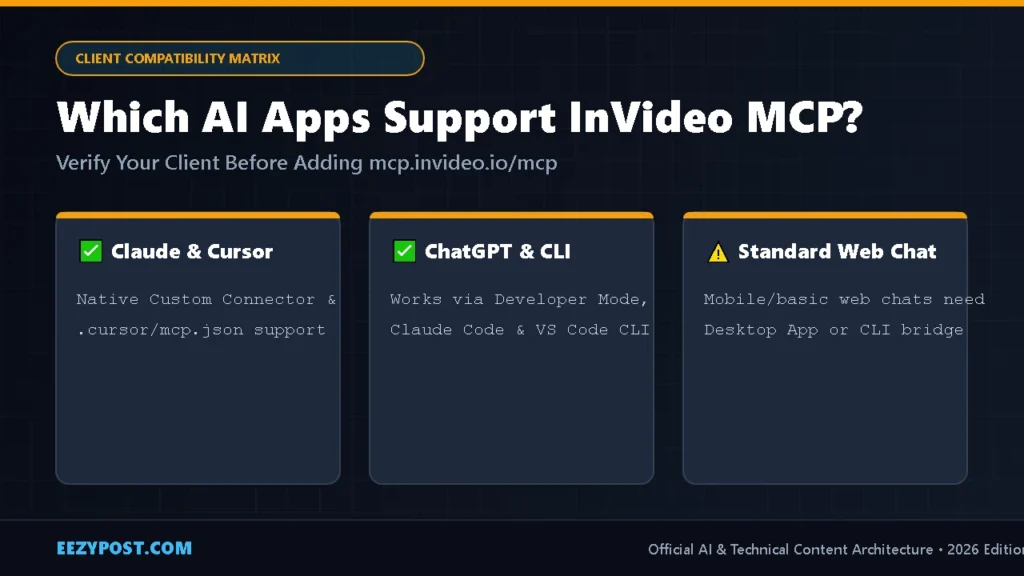
Before you change any settings, check this compatibility table. Many creators waste 20 minutes looking for an MCP button inside standard mobile or web chats (like standard Gemini Web or free ChatGPT accounts) that do not allow custom remote MCP servers.
| AI Client / Editor | InVideo MCP Support | Connection Method | Auth Type | Best Use Case |
| Claude Desktop & Web | ✅ Full Support | Custom Connector URL ([https://mcp.invideo.io/mcp](https://mcp.invideo.io/mcp)) | Browser OAuth (No API Key) | Script-to-timeline commercial editing & color grading |
| Cursor IDE | ✅ Full Support | .cursor/mcp.json or 1-Click Deep Link | Browser OAuth | Turning code diffs & SaaS features into launch videos |
| ChatGPT (Plus/Pro/Team) | ✅ Full Support | Developer Mode -> Custom App Connector | Browser OAuth | All-in-one script writing + instant vertical social cuts |
| Claude Code (CLI) | ✅ Full Support | Terminal Plugin or claude mcp add | Browser OAuth | Batch importing local footage folders & atomic edits |
| Vercel v0 & Lovable | ✅ Full Support | Prompt + Menu -> MCPs -> Custom OAuth | Browser OAuth | Generating hero videos alongside landing page code |
| Standard Gemini Web Chat | ❌ Not Supported Directly | Use Gemini CLI in VS Code or copy prompts manually | N/A | Writing scene-by-scene scripts & VFX prompts |
Interactive Tool: InVideo MCP Config & Agent Prompt Generator
InVideo MCP Config, Credit & Prompt Calculator
Select your AI client, video duration, and timeline task below to generate your exact copy-paste MCP configuration, estimated time saved, and a frame-accurate agent command.
Step-by-Step: How to Add InVideo MCP to Every Major AI Client
 into Claude Connectors and Cursor mcp.json configuration file](https://eezypost.com/wp-content/uploads/2026/11/how-to-add-invideo-mcp-claude-cursor-steps-1024x576.webp)
Depending on which AI workspace you use daily, follow the exact setup method below. Everything runs on the official Model Context Protocol specification—you can read more about how remote HTTP transport works in the official Model Context Protocol documentation.
Method 1: Connect InVideo MCP to Claude (Web & Desktop App)
Claude is currently the smoothest client for directing multitrack edits, transitions, and voiceover ducking.
- Open Claude.ai or the Claude Desktop app and click Customize (or Settings -> Connectors) in the left sidebar.
- Click the + (Add Custom Connector) button.
- Fill in the two fields:
- Name:
invideo - Server URL:
[https://mcp.invideo.io/mcp](https://mcp.invideo.io/mcp)
- Name:
- Click Connect. A browser popup will launch asking you to sign into your InVideo account (free or paid accounts both work; the editor itself is free, while AI generation uses credits).
- Once approved, start a new Claude chat, verify the
invideotool icon is active, and ask: “Open a new 9:16 timeline in InVideo and cut a 15-second product teaser.”
Method 2: Connect InVideo MCP to Cursor IDE
If you use Cursor to manage websites, tools, or client projects, you can wire InVideo straight into your agent sidebar:
- Open your global Cursor configuration file at
~/.cursor/mcp.json(or create.cursor/mcp.jsoninside your project folder). - Paste the following JSON block:
JSON
{
  "mcpServers": {
    "invideo": {
      "url": "https://mcp.invideo.io/mcp"
    }
  }
}
- Save the file and restart Cursor.
- Go to Cursor Settings -> MCPs and make sure
invideoshows a green indicator. Complete the 1-click browser sign-in when prompted.
Method 3: Connect InVideo MCP to ChatGPT (Desktop & Web)
To use external MCP servers inside ChatGPT, you must enable Developer Mode first:
- Go to Settings -> Security and Login (or Apps & Connectors -> Advanced) and toggle on Developer Mode.
- Navigate to Customize -> Connectors / Plugins and click + to add a custom MCP server.
- Set the Name to
invideoand paste[https://mcp.invideo.io/mcp](https://mcp.invideo.io/mcp)as the endpoint URL. - In your ChatGPT composer bar, click the + button, enable invideo under Developer Mode tools, and approve the OAuth login.
Method 4: 1-Prompt Automated Agent Setup (Zero Manual Config)
If you are running an agent with local settings access (like Claude Code, Codex, or Cursor Agent mode), you don’t even have to edit JSON files manually. Copy and paste InVideo’s official self-setup prompt directly into your agent:
“Set up invideo’s video editor as an MCP server for yourself so we can edit videos on a professional NLE timeline together. Read invideo’s setup guide at https://invideo.io/agents.md and follow the steps for the client you are running in. Ask me once before changing my client settings, and tell me if a browser sign-in or restart is needed.”
How We Use InVideo MCP to Cut E-Commerce Ads 3x Faster
Connecting the server is only half the battle—how you prompt the timeline determines whether your video looks like a cheap template or a high-converting commercial.
When we tested AI-generated creators against traditional shoots in our AI UGC Ads vs Human Creators 2026 CPA Breakdown, we found that the first 3 seconds of visual pacing and clean audio levels make or break your Return on Ad Spend (ROAS).
Instead of giving your MCP agent a vague prompt like “make an ad for my store,” feed it atomic NLE timeline instructions like these:
- The Rough Cut Command: “Create a 9:16 sequence in InVideo. Place my uploaded product clip on V1, cut the dead air in the first 1.5 seconds, and add a bold title card upfront.”
- The Audio Mastering Command: “Generate an energetic male voiceover for this script on A1, lay an upbeat electronic track on A2, duck the music -12dB under the voiceover, and normalize the full mix to -14 LUFS.”
- The Retention Caption Command: “Add word-by-word dynamic captions in bold white text on a dark pill backing, positioned above the lower-third safe zone.”
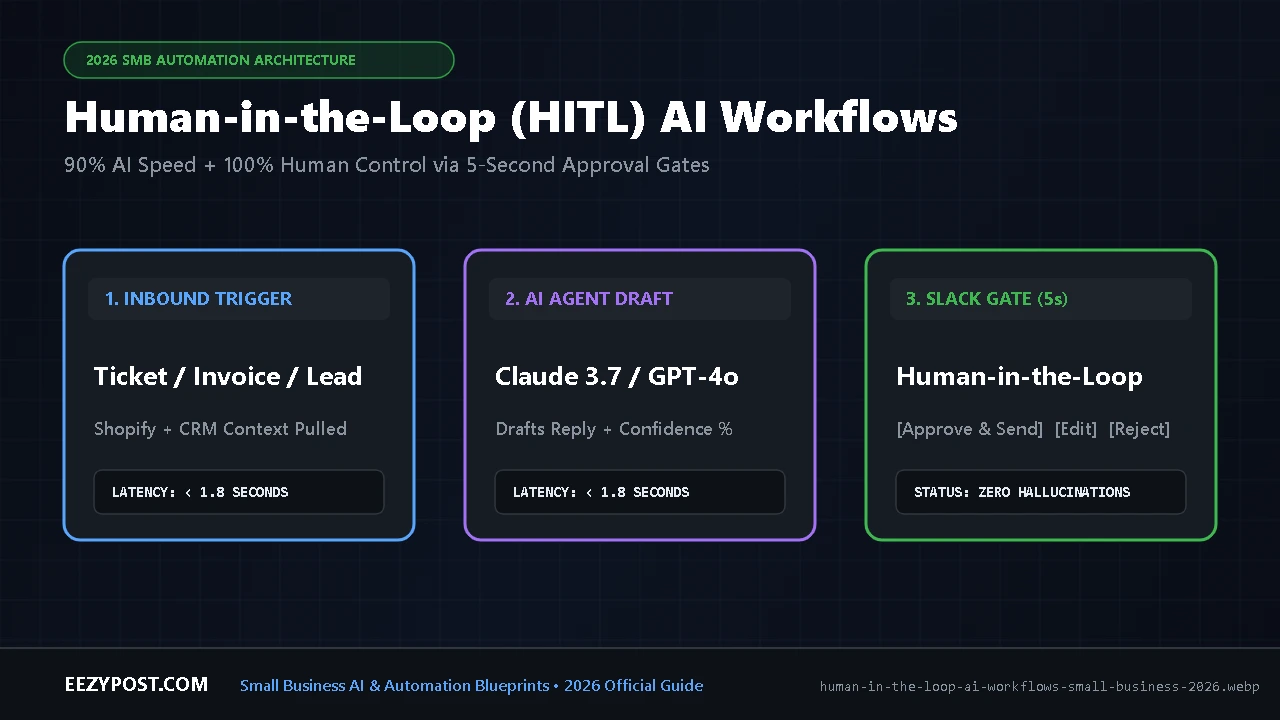
If you want to connect your video creation pipeline to the rest of your business operations, you can even pair your video alerts with automated approval flows using our Human in the Loop AI Workflows for Small Business Guide.
3 Common InVideo MCP Errors (And How to Fix Them Fast)

- Error 1: “My AI says it cannot connect to external URLs or MCP servers.”
- The Fix: You are likely pasting the URL into a standard chat window (like standard Gemini Web or basic ChatGPT without Developer Mode) instead of the client’s Connectors / MCP configuration panel. Switch to Claude Desktop, Cursor, or enable ChatGPT Developer Mode.
- Error 2: “InVideo OAuth sign-in keeps looping or failing to finish.”
- The Fix: Double-check that your server URL is typed as
[https://mcp.invideo.io/mcp](https://mcp.invideo.io/mcp)(using Streamable HTTP) and not a trailing slash or legacy SSE URL unless your specific directory requires/sse. Clear your browser popup blocker and click Connect again.
- The Fix: Double-check that your server URL is typed as
- Error 3: “The agent writes a script in chat instead of opening the InVideo timeline.”
- The Fix: Explicitly name
invideoin your prompt (for example: “Use the invideo MCP tool to open a timeline and cut this…”) so the agent’s router invokes the remote tool instead of answering with plain text.
- The Fix: Explicitly name
Frequently Asked Questions (FAQs)
Do I need a paid InVideo API key to use the InVideo MCP server?
No. Connecting to [https://mcp.invideo.io/mcp](https://mcp.invideo.io/mcp) does not require an API key. When you add the server URL to Claude, ChatGPT, or Cursor, it uses browser-based OAuth to sign into your existing InVideo account. Manual editing and timeline exports are free without watermarks, while AI video/audio generation consumes your account credits.
Can I edit the video timeline at the same time as my AI agent?
Yes. InVideo MCP opens a live collaborative browser timeline. You can see your AI agent’s cursor making cuts, adding transitions, and grading clips in real time, and you can click into any frame to adjust cuts manually or restore an earlier checkpoint.
Can I export my InVideo MCP project to Premiere Pro or DaVinci Resolve?
Yes. In addition to rendering a finished 1080p MP4 video directly from the browser, you can export an editable project file compatible with Adobe Premiere Pro, Final Cut Pro, or DaVinci Resolve.




Leave a Reply