


Stuck with an Outlook hacked forwarding rule cannot delete error—or a malicious rule that keeps reappearing minutes after you remove it? An attacker still holds an active background session, unauthorized POP/IMAP access, a rogue OAuth app, or a hidden server-side rule. Under the Eezypost 24-Hour Outlook Purge Protocol, you must kill active sessions and legacy IMAP first, wait out Microsoft’s 24-hour token propagation window, purge hidden rules via desktop switches or MFCMAPI, and lock your login behind a secret alias.
You did everything the standard help pages told you to do. You changed your Microsoft password, turned on two-step verification, opened Outlook settings, clicked the trash icon on that sketchy forwarding rule, and breathed a sigh of relief.
Ten minutes later, you refresh the page—and the rule is sitting right back where it started. Or worse: the delete button is greyed out, incoming bank and social-media security codes are quietly vanishing into RSS Feeds or a strange foreign-language folder like Lưu trữ, and a blackmail draft saying “I was hacked” keeps respawning in your Drafts folder.
If you already followed our pillar guide on what to do when an account is hacked even with 2FA, this is the exact Microsoft-specific persistence trap that breaks most recoveries. Standard advice misses it completely—and even Microsoft forum replies frequently paste enterprise Exchange Online PowerShell commands (Revoke-MgUserSignInSession or Get-Mailbox) that only work for corporate IT admins, not personal @outlook.com, @hotmail.com, or @live.com inboxes.
Here is what is actually happening inside your mailbox—and the exact sequence that kills it for good.
Why Does a Hacked Outlook Forwarding Rule Keep Coming Back?
An Outlook forwarding rule regenerates—or refuses to delete—because changing your password does not immediately sever active refresh tokens, legacy POP/IMAP connections, third-party app permissions, or corrupted server-side MAPI rules. Even after you click Sign out everywhere, Microsoft’s own security architecture can take up to 24 hours to force every live background session off the server.
During that 24-hour window, an attacker’s automated script (or an infostealer sitting on your Windows PC) stays connected just long enough to notice you deleted the rule—and silently recreates it.
Before touching another setting, match your exact mailbox symptom to the real technical cause below:
| Mailbox Symptom | Real Technical Cause | Why Normal Rule Deletion Fails | Exact Fix Required |
| Forwarding rule reappears minutes after deletion | Active OAuth token, unauthorized POP/IMAP sync, or a still-infected Windows device running a background script. | Deleting the rule inside Outlook Web leaves the attacker’s live connection open. | Disable POP/IMAP, revoke OAuth apps, click Sign out everywhere, wait 24 hours, then delete in Incognito. |
| Emails vanish into RSS Feeds or Deleted Items (with zero rules listed) | Hidden or corrupted server-side MAPI rule (often named ..... or ,,,,) invisible in Outlook Web. | Outlook Web hides malformed rules from the normal Settings UI. | Run outlook.exe /cleanserverrules in Classic Outlook or purge the hidden rule via MFCMAPI. |
| Delete button greyed out or foreign folders (e.g., “Lưu trữ”) appear | Compromised session changed mailbox region/language settings or synced folders via an external IMAP client. | Locked default system folders cannot be deleted until language resets and external IMAP clients are kicked off. | Disable POP/IMAP, reset Outlook Web language/time zone, then delete custom folders after session expiry. |
| Blackmail “I was hacked” draft keeps returning after deletion | Attacker triggered an automated Microsoft To Do flagged-email task or synced draft loop via IMAP. | Deleting the email from Drafts leaves the linked task inside Microsoft To Do untouched. | Open the blue To Do checkmark tab on Outlook Web, delete rogue tasks/flagged items, and turn off POP/IMAP. |
Look at row four. Almost nobody checks Microsoft To Do after an email breach, yet victims across Outlook help forums have repeatedly traced self-regenerating extortion drafts straight back to hidden items inside the left-hand To Do sidebar.
Outlook Hacked Forwarding Rule Cannot Delete: The 6-Step Backend Purge Protocol
When facing an Outlook hacked forwarding rule cannot delete loop, work from a clean desktop browser in Incognito / InPrivate mode (not the Outlook mobile app) and cut every hidden access tunnel before deleting the rules. Follow the Eezypost 24-Hour Outlook Purge Protocol in strict order—skipping Step 2 or Step 3 is why ghost rules survive.

Step 1: Rule Out a Still-Infected Computer First
If you recently ran a pirated installer, browser mod, or a fake “Verify you are human” Win + R prompt on your Windows PC, do not run recovery from that computer. Shut that PC offline and complete Steps 2–4 on a known-clean laptop or desktop—otherwise malware will immediately grab your fresh session cookie all over again.
If your computer is clean but you want to be certain before typing a new password, run a one-time full check with the official Microsoft Safety Scanner alongside Microsoft Defender.
Step 2: Cut Every Silent Tunnel Inside account.live.com
Open a private browser window, sign in at [https://account.live.com](https://account.live.com), and sever all four persistence doors in one sweep:
- Kill Legacy App Passwords: Go to Security → Manage how I sign in, scroll to App passwords, and click Remove existing app passwords. Legacy app passwords bypass two-step verification completely.
- Revoke Rogue OAuth Apps: Open Privacy → App access (or
[account.microsoft.com/privacy/app-access](https://account.microsoft.com/privacy/app-access)) and revoke every third-party app or script you do not explicitly recognize. - Remove Unknown Devices & Aliases: Check Devices and Your info → Sign-in preferences and strip out any unfamiliar hardware, recovery email, or added alias.
- Change Password, Enable App 2FA, and Force Sign-Out: Set a unique 16+ character password, activate the Microsoft Authenticator app (or a passkey), and click Sign out everywhere on the Manage how I sign in page.
(Microsoft’s official walkthrough on how to recover a hacked or compromised Microsoft account covers the baseline reset, but it skips the two hidden Outlook Web toggles in Step 3 that actually stop self-regenerating rules.)
Step 3: Turn Off Unauthorized POP/IMAP and Wipe Non-Rule Hiding Spots
While still in your Incognito browser, open [https://www.outlook.com](https://www.outlook.com), click the Gear icon (Settings) at the top right, and clean these four panels under Mail:
- Forwarding and IMAP: Toggle OFF both Enable forwarding and Let devices and apps use POP / IMAP. Attackers quietly flip IMAP on so remote scripts can keep syncing drafts and pulling inbox mail without using the web interface.
- Rules: Delete every rule you did not create—even innocent-looking ones named with dots (
.....), commas (,,,,), or single letters. - Conditional formatting & Junk email: Check Conditional formatting for rogue entries and clear unfamiliar addresses from Safe senders and domains (hackers whitelist their own scam domains here).
- Microsoft To Do (Blue Checkmark Icon on Left Sidebar): Click the blue checkmark icon, inspect Tasks and Flagged email, and delete anything suspicious that keeps regenerating blackmail drafts.
Step 4: Respect the 24-Hour Propagation Clock (Crucial)
Here is where almost everyone panics too early. Microsoft’s Sign out everywhere trigger does not instantly kill every cached mobile or API token—it can take up to 24 hours to clear across every Microsoft edge server.
If a deleted rule reappears two hours after you changed your password, do not assume your new password was cracked. Wait out the full 24-hour window, log back into outlook.com in a fresh Incognito window, verify POP/IMAP is still off, and delete the rule one final time. In the vast majority of cases, once the 24-hour token clock expires, the rule dies permanently.
Step 5: Remove Hidden or Greyed-Out Rules That Refuse to Delete
What if 24 hours have passed, Sign out everywhere has completed, and you still hit the Outlook hacked forwarding rule cannot delete roadblock—or emails are still diverting to RSS Feeds even though your Rules tab looks completely empty?
You are dealing with a corrupted or hidden server-side MAPI rule. Webmail cannot touch it. Use one of these two desktop fixes:

- Method A — The Classic Outlook Server-Rule Switch (Fastest): If you have Classic Outlook for Windows installed, close Outlook completely. Press
Win + R, type the exact command below (including the space before the slash), and press Enter:outlook.exe /cleanserverrulesWait for Outlook to reopen and resync. This forces Microsoft’s mail server to wipe every server-side rule—including invisible ones routing security codes into RSS Feeds. (Note: if you only want to purge all rules both locally and on the server,outlook.exe /cleanruleswipes both.) - Method B — MFCMAPI Hidden Rule Purge (When Classic Outlook Won’t Clear It): If a corrupted rule still throws an error or stays greyed out, download Microsoft’s open-source MFCMAPI tool from GitHub on a clean Windows PC (make sure all Outlook windows are closed first):
- Launch MFCMAPI → click Session → Logon and select your Outlook profile.
- Double-click your mailbox, expand Root Container → Top of Information Store → Inbox.
- Right-click Inbox and select Open associated contents table.
- Sort by the Message Class column and look for entries labeled
IPM.Rule.Version2.MessageorIPM.ExtendedRule.Message. - Inspect the rule name/provider column, right-click any malicious or blank-named rule, and choose Delete message → Permanent deletion (passing DELETE_HARD_DELETE).
Warning: Only delete IPM.Rule rows inside MFCMAPI—never touch unrelated system rows inside the associated contents table.
Outlook Ghost Rule & Backdoor Risk Calculator
Check every symptom happening in your Outlook or Hotmail inbox right now to calculate persistence risk and get your exact next fix.
Step 6: Re-Check Linked Banking and Shopping Accounts
Hackers create silent Outlook forwarding rules for one reason: to intercept password-reset emails and bank/crypto alerts before you ever see them. Check your Deleted Items, RSS Feeds, and Sent folders for any reset confirmations you did not trigger, and immediately audit linked financial apps.
Worried about unauthorized apps or automated tools spending money without your consent after an inbox leak? Read our breakdown on AI Agent Purchase Approval: Can AI Buy Without Asking?.
Why Foreign Folders (“Lưu trữ”) Appear and How to Fix Them
When an attacker accesses your mailbox from a script or browser set to another language—Vietnamese (Lưu trữ means “Archive”), Russian, or Chinese—Outlook automatically translates default system folder names to match their session language. That is why the delete option is greyed out: Outlook is protecting your real Archive folder, not a virus folder.
To restore your folder names back to English in 30 seconds:
- Open
[https://www.outlook.com](https://www.outlook.com)→ click Settings (Gear icon) → General → Language and time. - Confirm Language is set to your preferred English variant (e.g., English (United States)).
- Check the box labeled Rename default folders so their names match the specified language (if already English, switch briefly to English (United Kingdom), save, then switch back to English (United States) and save).
- Refresh the page. Lưu trữ converts cleanly back to Archive without losing your emails.
How to Stop Outlook Hacking Attempts Permanently (The Login-Only Alias Shield)
Once your email address leaks in a breach, automated bots hammer your Microsoft login page hundreds of times a day forever. Even with 2FA, one accidental tap or cookie leak puts you back at square one. Microsoft gives personal accounts a free defense almost nobody enables: a Login-Only Sign-In Alias.
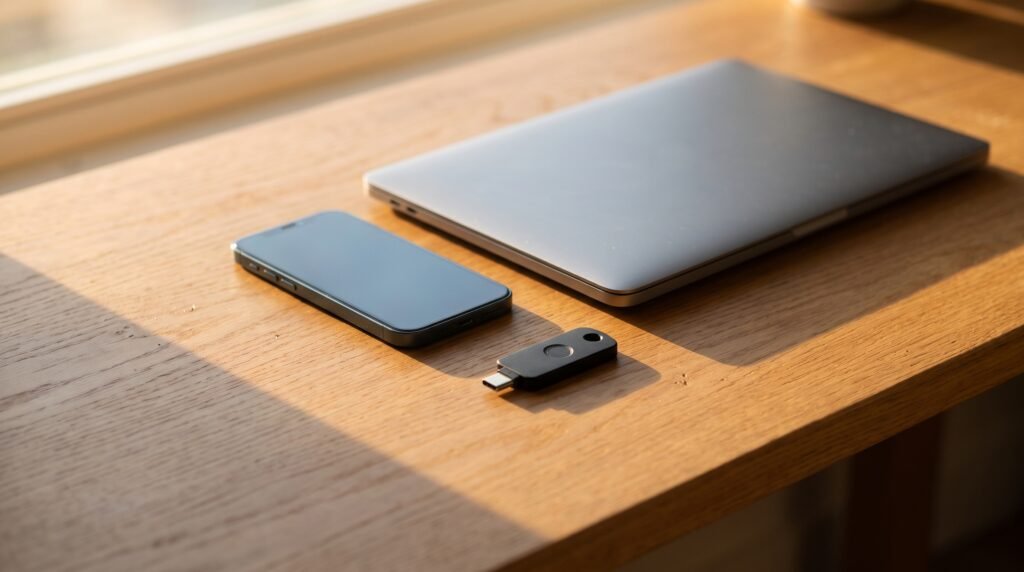
Set it up in 2 minutes at [https://account.live.com](https://account.live.com):
- Go to Your info → Account info → Edit account info (or Sign-in preferences).
- Click Add email → Create a new email address and add it as an alias (pick a random, hard-to-guess
@outlook.comaddress you will never share, give to websites, or send mail from). - Click Make primary next to the new alias if you prefer, then click Change sign-in preferences at the bottom of the page.
- Uncheck the box next to your old, public email address and click Save.
CRITICAL WARNING: Never click Remove next to your old @hotmail.com, @live.com, or @outlook.com address—clicking Remove deletes that Microsoft address permanently and you can never get it back. Only uncheck its sign-in box under Change sign-in preferences.
What happens next? You continue receiving and sending emails on your exact same old address without missing a single message—but if any hacker or bot tries to log into Microsoft using your leaked email address, Microsoft instantly returns “That Microsoft account doesn’t exist”. Zero brute-force attempts. Zero 2FA spam prompts.
Frequently Asked Questions
Why can’t I delete a forwarding rule in hacked Outlook?
An Outlook hacked forwarding rule cannot delete glitch usually happens because an attacker still holds an active background session, legacy POP/IMAP connection, or third-party OAuth app permission that recreates the rule automatically—or the rule is a corrupted hidden MAPI server rule that Outlook Web cannot edit. Cut POP/IMAP and wait 24 hours after clicking Sign out everywhere.
How long does Microsoft “Sign out everywhere” actually take?
Microsoft warns that Sign out everywhere can take up to 24 hours to disconnect every active cached session across all apps and servers. Always re-check your Outlook Rules, Forwarding, and To Do tabs after a full 24 hours have passed.
Why are my Outlook emails going to RSS Feeds when I have no rules?
Hackers routinely create invisible or corrupted server-side rules (often named ..... or ,,,,) that silently mark bank and security alerts as read and dump them into RSS Feeds. Run outlook.exe /cleanserverrules in Classic Outlook or purge IPM.Rule entries with MFCMAPI to remove them.
Why does a blackmail “I was hacked” draft keep returning in Outlook?
Attackers abuse Microsoft To Do (flagged-email tasks) and unauthorized POP/IMAP sync to keep regenerating extortion drafts even after you delete them from your Drafts folder. Open the blue To Do checkmark icon in Outlook Web, delete rogue tasks, and disable POP/IMAP.
Will changing my Microsoft sign-in alias break my existing emails?
No, as long as you only uncheck your old email under Change sign-in preferences instead of clicking Remove. You still send and receive every email normally on your original address, while hackers trying to sign in with it are blocked instantly.

Leave a Reply